GETTING STARTED
Accessing Onsite
First-time users typically access Onsite by scanning a QR code provided by their principal contractor or by visiting:
https://onsite.certify.net.au
The primary contact for a Certify Network account is automatically assigned the Administrator role. Administrators can register employees using the Add Employee function.
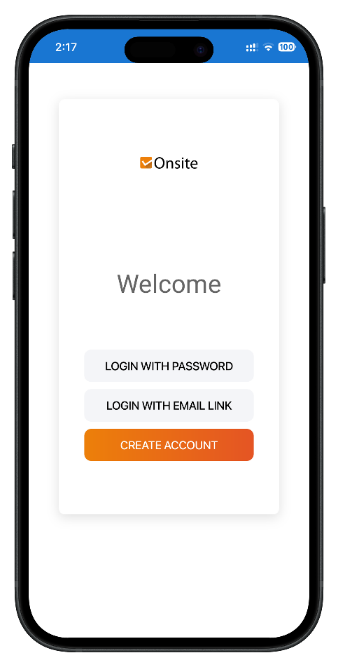
When logging in for the first time, users enter:
- Their email address as their username
- Their first name as their temporary password
Users will be prompted to create a new password after their first login.
Forgotten Passwords
If you have forgotten your password, select Login with Email Link on the login screen. A secure one-time login link will be sent to your registered email address.
Note: Most functions described in this guide require Administrator permissions. Users with other roles may have access to a limited set of features.
Arriving on Site
The primary purpose of Onsite is to manage safety and compliance on construction sites.
Before entering a site, workers and visitors should access Onsite by scanning the site's QR code or opening the app from their mobile device. The QR code contains a unique site identifier used for:
- Recording site attendance
- Delivering safety alerts
- Managing toolbox talks
- Emergency mustering and worker accountability
The first time a worker attends a project for a principal contractor, they must complete a site induction before signing in.
Registering New Workers
If a worker has not previously used Onsite, a user account must be created before they can complete a site induction.
If the worker is already registered and has previously logged in, Onsite will recognise the account and skip the registration process.
Completing a Site Induction
To complete a site induction, workers must first select the contractor they work for.
The selected contractor must:
- Be assigned to the project
- Have an approved Safe Work Method Statement (SWMS) for the work being undertaken
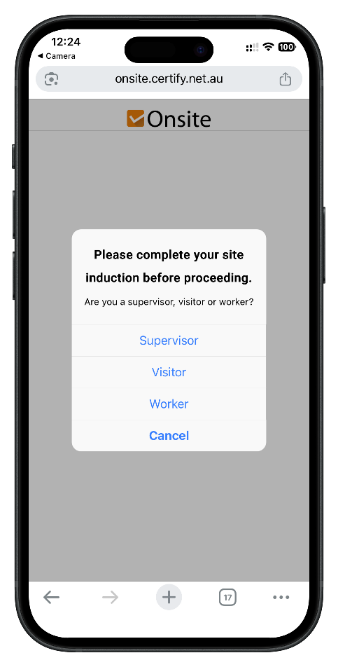
During the induction process, workers will be required to confirm that they have read, understood, and agree to follow the contractor's approved SWMS and any applicable site requirements.
Once the induction has been successfully completed, it will generally remain valid for future visits to projects managed by the same principal contractor.
Signing In Using GPS or QR Code
After completing a site induction, workers may be automatically signed in during their first visit.
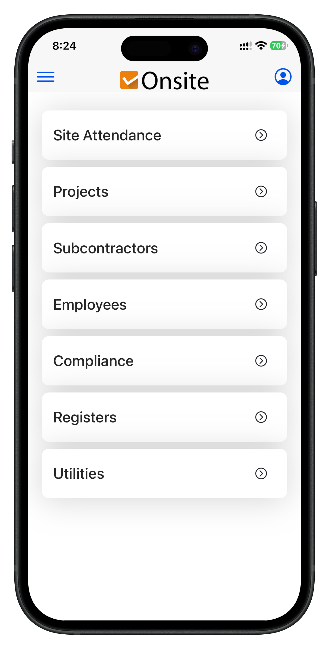
For future visits, workers can sign in by:
1. Scanning the site QR code with their mobile device, or
2. Opening the Onsite app from their home screen
Workers then use the Sign In/Out function and select either:
- QR Code Sign In, or
- GPS Sign In
depending on the site's configuration.
Daily Sign In and Sign Out
All workers and visitors must complete the required pre-start safety checks before signing in.
Depending on the site configuration, this may include:
- A daily safety checklist
- Trade-specific risk assessments
- Fitness-for-work declarations
- Acknowledgement of site safety messages
Safety messages may include information about:
- Weather conditions
- Site hazards
- Scheduled deliveries
- Restricted work areas
- Other important site notices
After signing in, the Sign Out button becomes available and should be used whenever leaving the site.
Important: Users who do not manually sign out will be automatically signed out at midnight.
Typical Worker Workflow
For most workers, the Onsite process follows these steps:
1. Access Onsite using the site QR code.
2. Register or log in.
3. Complete a site induction (first visit only).
4. Review and acknowledge safety requirements.
5. Sign in using QR Code or GPS.
6. Perform work in accordance with approved SWMS and site rules.
7. Sign out when leaving the site.
Following this workflow ensures that attendance, inductions, and safety compliance records are maintained accurately throughout the project.